This is a guest contribution from Chantal Imbach of Simply In Order
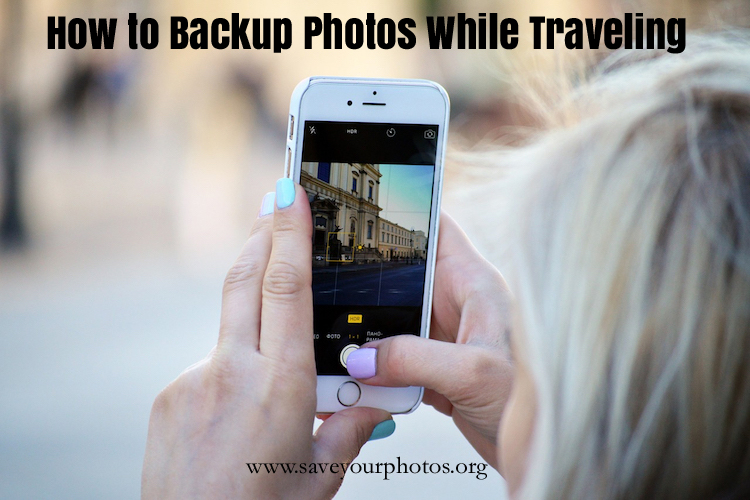
Do you know anybody who doesn’t take photos while traveling? Well, certainly not me! Modern technology enables us to take photos very easily and we often not only use a digital camera but also our phone or other devices to take photos.
However, these things can easily get lost, stolen, or damaged and you might lose all of those precious photos you took (possibly even those taken before your trip if you haven’t got a backup system in place). So, what can you do to keep your photos safe and backed up during your trip?
Below are some options for various needs and budgets. Just go through the list and find which method suits you most. You may even vary between methods from one trip to another depending on where you go.
Photo organizers recommend that you save three copies of a photo. This might not always be realistic while traveling but keep it in mind. Also, downloading your photos to a backup place and then deleting the photos on your camera is not a backup – it’s just a relocation of your photos!
Technology changes all the time so please do your own research with regards to the equipment you need.
Backup from a Phone
To the cloud (automatically or manually)
If you’ve got internet access it is a great way to backup your photos. Especially because we recommend that you not only have three copies of a photo but also in two different locations.
I recommend checking out two of APPO’s partners – either Forever or Mylio.
Dropbox has worked well for me in the past. There are of course lots of other services such as iCloud, Google+, OneDrive, etc.
A word of caution: read the small print of all providers before you make a choice. As an example: there are some who will charge you if you want to download your photos from their cloud service or with some of them you won’t get back the original resolution or you might have to download them one by one.
To a portable hard drive with WiFi
Together with the right app (depending on your phone) you can upload your photos wirelessly to a portable hard drive. An example is Seagate Wireless Plus.
To a portable hard drive without WiFi
This is a bit trickier because you will need a computer via which you can copy your photos to (see below how to do this). Don’t shy away from the idea of using a portable hard drive. I use Seagate all the time and they’re really light and small; perfect to carry around.
To a computer
If you take a laptop on your trip you simply need to connect your phone to your computer and copy your photos. To be even safer you could then copy the images to an external hard drive or USB to backup your computer – et voilà: you’ve got your three copies.
You may also use a computer in a hotel business centre or in an internet café if you travel without your own.
To a USB flash drive for smartphones and tablets
There are various USB flash drives which you can connect directly to your phone and download your photos to. They come in various sizes and are pretty easy to carry around. This is definitely a favourite of mine.
Examples are the PictureKeeper, SanDisk iXpand, or SanDisk Ultra Dual Drive.
As an option you can also buy adapters to connect your phone with a regular USB flash drive.
To a tablet
The fastest way if you don’t have internet access is probably to use Airdrop, which creates a peer-to-peer network. SHAREit works similarly.
To an SD card
Some Android phones actually include a mini SD card. Make sure in the settings that this is where the photos are stored. If you want to transfer photos from the SD card please see below for options.
iPhones cannot export or copy photos from the phone directly to an SD card. It is only possible via a computer.
Backup from a Camera Memory Card
Remove the memory card from your camera (or your Android phone) and use a card reader to import the photos to a computer, your phone, a tablet, or another mobile device. Make sure you have the correct reader/s and adapters with you.
If a computer and a portable hard drive is too much to carry along, a memory card backup system like Nexto DI or Hyperdrive might be the ideal solution. They are like a hard drive with slots for the memory cards and come with a display as well.
Backup from a Camera via USB Connection
Connect the camera to a computer via the USB cable and copy your photos. While you’re at it, you could make another copy to an external hard drive or to the cloud if you have internet access.
Wireless Backup from a Camera Memory Card
Invest in an Eye-Fi memory card which can transfer photos wirelessly to your device or computer. Keep in mind that the camera will have to be powered on while photos are transferred which requires battery power.
Once you have copied the photos from your camera to a computer or other device, you can use the above-mentioned tips to back these up.
Before You Travel
- Work out a backup plan that suits your needs.
- Make sure you have all the necessary equipment formatted correctly (especially portable hard disks).
- Don’t forget at least one international power adapter.
- Think about how you want to transport these things so they stay organized and safe. I like zip lock bags (protects against humidity and dirt at the same time). Also try to keep the camera away from the backup.
- Make sure all your cameras always have the correct date/time setting (of the time zone you’re in when taking the photo). It will make your life a lot easier because you will automatically have the correct chronological order (especially if you use several cameras and devices).
- Once your trip has started, keep in mind to set aside some time to backup your photos regularly.
- Enjoy your holiday!
After Your Trip
Remember, these backups are meant to happen while you’re traveling. If one of the copies you made is now already in your photo hub (e.g. if you used Forever or Mylio) it will save you the time to download everything again. If they are not in your usual hub yet, you’ll have to download your photos as soon as possible and use your usual photo management workflow.

Living in a beautiful but also very fire prone area outside Melbourne (Australia) has triggered Chantal Imbach’s passion for keeping photo collections safe and organized so they can be passed on to future generations in a meaningful way.
Starting out as a home declutterer and organizer, she has now specialized in digital photo organizing and shares more of her tips in her blog at Simply In Order.


I have noticed you don’t monetize your website, don’t waste your traffic, you can earn extra
cash every month because you’ve got hi quality content.
If you want to know how to make extra bucks, search for:
Boorfe’s tips best adsense alternative
Hello, is anybody here interested in online job? It is simple survey filling.
Even 10$ per survey (ten minutes of work). If you are interested, send me email to hans.orloski[at]gmail.com
I have checked your website and i’ve found some duplicate content,
that’s why you don’t rank high in google, but there is a
tool that can help you to create 100% unique content, search for: Boorfe’s
tips unlimited content
I have noticed you don’t monetize your page, don’t waste your traffic, you can earn extra bucks every month because you’ve got
hi quality content. If you want to know how to make extra bucks, search
for: Ercannou’s essential adsense alternative