Save Your Photos

  • Home
  • Blog
  • Disaster Help
    • Disaster Resources
    • Hurricane Harvey Photo Recovery
    • Hurricane Irma Photo Recovery
  • Who We Are
    • Save Your Photos Group
    • The Photo Organizers Blog
    • Association of Personal Photo Organizers
  • Sponsors
    • How To Become A Corporate Sponsor

Oct 25 2017

Save Your Photos: The 3-2-1 Backup Strategy

Save Your Photos: The 3-2-1 Backup Strategy

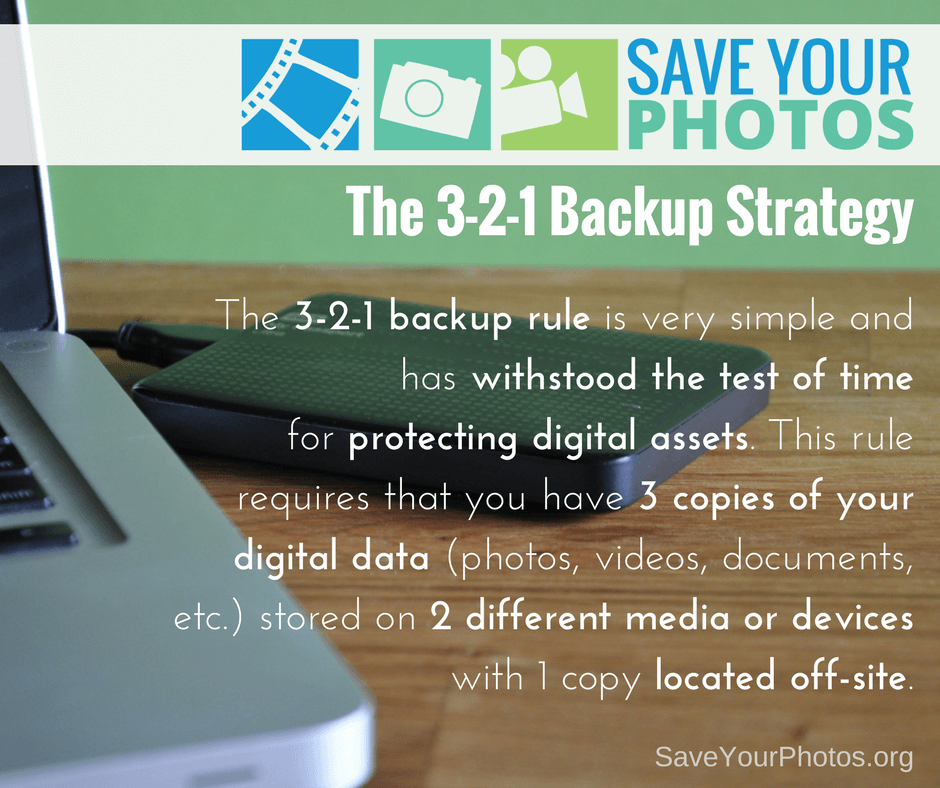
The 3-2-1 backup rule is very simple and has withstood the test of time for protecting digital assets. This rule requires that you have 3 copies of your digital data (photos, videos, documents, etc.) stored on 2 different media or devices with 1 copy located off-site.
Save Your Photos: 3-2-1 Backup Strategy | SaveYourPhotos.org


A Tried and True Backup Strategy

We live in a world of rapidly changing technologies that continually demand bigger, better and faster ways for storing and protecting your digital life. And while best practices for managing your digital assets evolve quickly, this has not been true for the 3-2-1 backup strategy which has withstood the test of time.

For years, organizations, businesses, and individuals have been using this method as a reliable strategy for backing up their digital files, and professional photographers use this method for protecting their large photo collections.


Back Up Your Digital Assets


Let’s break it down. We’re going to talk specifically about backing up your memory collection (your digital photo hub), but this strategy applies to all your digital assets.


Three copies of your digital photo hub

If you have your originals plus 2 more copies, for a total of 3 copies, you reduce the odds of losing your data significantly. You are creating a system with triple redundancies.


Stored on 2 different media or devices

When you store your originals on one device and a copy on a second device or media, that means you have immediate access to a backup if one of those devices fails. When your computer crashes or your EHD fails (and they will) your files can be restored from the other device. Storing these devices locally means you have full control and access at all times.


Store 1 copy off-site

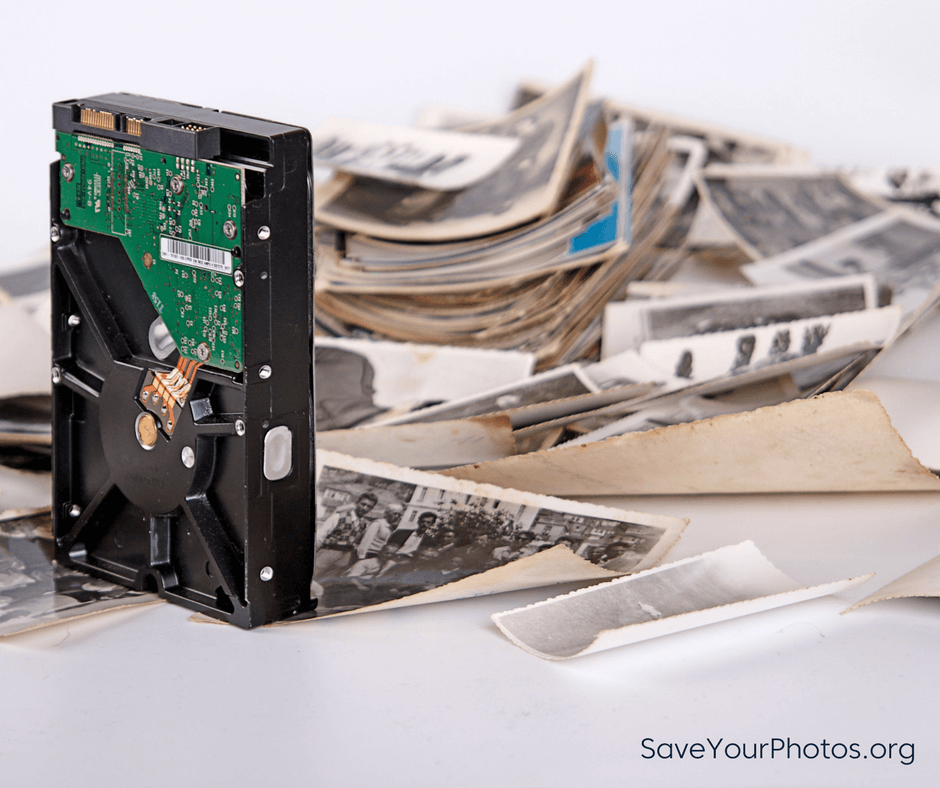
The third copy of your hub should be stored in a different location from your other 2 copies. If all 3 copies of your hub are located in your home, your precious memories are at risk if something unforeseen should happen to your home. Natural disasters, fires, floods, and theft are unexpected tragedies that can happen to anyone. We recommend a cloud-based backup or storage solution for your 3rd location. If the cloud isn’t an option, your third copy can be stored on another device, or optical discs (archival gold DVD’s) and stored in a different location as far away from your home as possible.
 

Save Your Photos: 3-2-1 Backup Strategy | SaveYourPhotos.org

Automate Your 3-2-1 Backup Strategy


“Backups that rely on humans, never get done.” – Ben, the Newtown Nerd


The more you automate your backup strategy, the better! There are plenty of cloud backups that run automatically in the background of your computer, and your OS has auto-backups that you can configure with your EHD.

If you already have a 3-2-1 backup strategy in place, give yourself a pat on the back. The 3-2-1 backup rule is the MOST important tip we can share.

Back them up!
Written by Andi Willis · Categorized: Backup · Tagged: backup solutions, digital backup, digital photo backup

Aug 10 2016

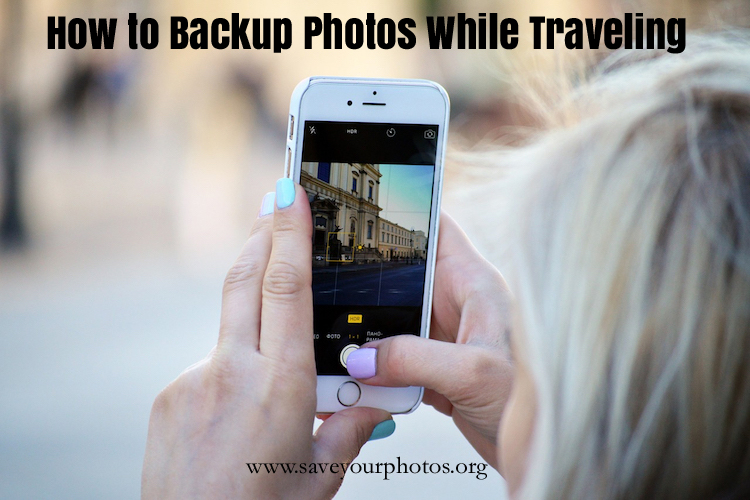
How to Backup Photos While Traveling

How to Backup Photos While Traveling

This is a guest contribution from Chantal Imbach of Simply In Order

Travelling

Do you know anybody who doesn’t take photos while traveling? Well, certainly not me! Modern technology enables us to take photos very easily and we often not only use a digital camera but also our phone or other devices to take photos.

However, these things can easily get lost, stolen, or damaged and you might lose all of those precious photos you took (possibly even those taken before your trip if you haven’t got a backup system in place). So, what can you do to keep your photos safe and backed up during your trip?

Below are some options for various needs and budgets. Just go through the list and find which method suits you most. You may even vary between methods from one trip to another depending on where you go.

Photo organizers recommend that you save three copies of a photo. This might not always be realistic while traveling but keep it in mind. Also, downloading your photos to a backup place and then deleting the photos on your camera is not a backup – it’s just a relocation of your photos!

Technology changes all the time so please do your own research with regards to the equipment you need.

Backup from a Phone

To the cloud (automatically or manually)

If you’ve got internet access it is a great way to backup your photos. Especially because we recommend that you not only have three copies of a photo but also in two different locations.

I recommend checking out two of APPO’s partners – either Forever or Mylio.

Dropbox has worked well for me in the past. There are of course lots of other services such as iCloud, Google+, OneDrive, etc.

A word of caution: read the small print of all providers before you make a choice. As an example: there are some who will charge you if you want to download your photos from their cloud service or with some of them you won’t get back the original resolution or you might have to download them one by one.

To a portable hard drive with WiFi

Together with the right app (depending on your phone) you can upload your photos wirelessly to a portable hard drive. An example is Seagate Wireless Plus.

To a portable hard drive without WiFi

This is a bit trickier because you will need a computer via which you can copy your photos to (see below how to do this). Don’t shy away from the idea of using a portable hard drive. I use Seagate all the time and they’re really light and small; perfect to carry around.

To a computer

If you take a laptop on your trip you simply need to connect your phone to your computer and copy your photos. To be even safer you could then copy the images to an external hard drive or USB to backup your computer – et voilà: you’ve got your three copies.

You may also use a computer in a hotel business centre or in an internet café if you travel without your own.

To a USB flash drive for smartphones and tablets

There are various USB flash drives which you can connect directly to your phone and download your photos to. They come in various sizes and are pretty easy to carry around. This is definitely a favourite of mine.

Examples are the PictureKeeper, SanDisk iXpand, or SanDisk Ultra Dual Drive.

As an option you can also buy adapters to connect your phone with a regular USB flash drive.

To a tablet

The fastest way if you don’t have internet access is probably to use Airdrop, which creates a peer-to-peer network. SHAREit works similarly.

To an SD card

Some Android phones actually include a mini SD card. Make sure in the settings that this is where the photos are stored. If you want to transfer photos from the SD card please see below for options.

iPhones cannot export or copy photos from the phone directly to an SD card. It is only possible via a computer.

Backup from a Camera Memory Card

Remove the memory card from your camera (or your Android phone) and use a card reader to import the photos to a computer, your phone, a tablet, or another mobile device. Make sure you have the correct reader/s and adapters with you.

If a computer and a portable hard drive is too much to carry along, a memory card backup system like Nexto DI or Hyperdrive might be the ideal solution. They are like a hard drive with slots for the memory cards and come with a display as well.

Backup from a Camera via USB Connection

Connect the camera to a computer via the USB cable and copy your photos. While you’re at it, you could make another copy to an external hard drive or to the cloud if you have internet access.

Wireless Backup from a Camera Memory Card

Invest in an Eye-Fi memory card which can transfer photos wirelessly to your device or computer. Keep in mind that the camera will have to be powered on while photos are transferred which requires battery power.

Once you have copied the photos from your camera to a computer or other device, you can use the above-mentioned tips to back these up.

Before You Travel

  1. Work out a backup plan that suits your needs.
  2. Make sure you have all the necessary equipment formatted correctly (especially portable hard disks).
  3. Don’t forget at least one international power adapter.
  4. Think about how you want to transport these things so they stay organized and safe. I like zip lock bags (protects against humidity and dirt at the same time). Also try to keep the camera away from the backup.
  5. Make sure all your cameras always have the correct date/time setting (of the time zone you’re in when taking the photo). It will make your life a lot easier because you will automatically have the correct chronological order (especially if you use several cameras and devices).
  6. Once your trip has started, keep in mind to set aside some time to backup your photos regularly.
  7. Enjoy your holiday!

After Your Trip

Remember, these backups are meant to happen while you’re traveling. If one of the copies you made is now already in your photo hub (e.g. if you used Forever or Mylio) it will save you the time to download everything again. If they are not in your usual hub yet, you’ll have to download your photos as soon as possible and use your usual photo management workflow.


2013_04_08_Chantal – Version 3
      Chantal Imbach

Living in a beautiful but also very fire prone area outside Melbourne (Australia) has triggered Chantal Imbach’s passion for keeping photo collections safe and organized so they can be passed on to future generations in a meaningful way.

Starting out as a home declutterer and organizer, she has now specialized in digital photo organizing and shares more of her tips in her blog at Simply In Order.


Written by Jackie Lyals · Categorized: Backup, Photo Organization, Photo Storage, Safeguard

Aug 03 2016

3 Things You MUST Know About Cloud Storage

3 Things You MUST Know About Cloud Storage

This is a guest contribution from Shelley Murray, Executive Sales Director of Forever

Forever_BlogPost

In the hustle and bustle of our digital age, we are often too quick to click the checkmark on the Terms of Service field when signing up for things online. But, have you ever stopped to read the pages and pages of conditions to which you are agreeing?

Our family photos are among our greatest possessions. Yet, we freely upload them to “The Cloud” without even thinking about whether or not they are truly safe there. Over the last 3 years, I have worked with numerous clients, helping them get their photos organized and preserved permanently. I have had first hand experience with Shutterfly, Flicker, MyLife, Google, Amazon, Dropbox, Walgreens, Costco and Apple iCloud. And I’ve been shocked by what I’ve learned about these cloud storage sites. When I outline the three biggest reasons why, my customers are usually just as shocked.

It’s amazing how trusting we tend to be, and how quickly we fall for the word “free”. Lets take a look at these 3 crucial points:

#1 – No Privacy or Security: Digital Rights & Data Mining

This is important. When you upload your photos to these sites, they immediately claim ownership of the digital rights to your photos. To my knowledge, all cloud storage sites are like this, with the exception of Dropbox.

To follow are some excerpts from the Terms of Service from several popular photo storage companies as of Feb. 2016:

Google: “When you upload, submit, store, send or receive content to or through our Services, you give Google (and those we work with) a worldwide license to use, host store, reproduce, modify, communicate and publicly display such content.” Also, “Our automated systems analyze your content (including emails). … This analysis occurs as the content is sent, received, and when it is stored.”

Nothing is free!

Membership at these sites is costing you your privacy. Once they own the digital rights to your photos, you become the product that they are selling. Yes, you are both the customer and the product. They are selling your habits, your interests, and your personal information as marketing collateral to large companies. Your information is extremely valuable for these billion dollar companies; it’s how they became billion dollar companies in the first place. The more photos you upload, the more money they make by watching what you do with those photos. A friend of mine uploaded photos to Amazon of her kids playing soccer and wearing Under Armor. Next thing you know, she began receiving all kinds of advertisements from Under Armor. Data-mining your life is the reason why these companies are so profitable and successful.

#2 – No Permanence

Do you trust that your photos will be available on these sites tomorrow? You should. Yet, according to the Terms of Service, there are no guarantees.

iCloud: “Apple may at any time, under certain circumstances and without prior notice, immediately terminate or suspend all or a portion of your Account.”

Shutterfly: “We may terminate your access to our Sites and Apps and to your account at any time, with or without cause, and with or without notice.”

Drop Box: “We also reserve the right to suspend or end the Services at any time at our discretion and without notice.”

In the last 10 years, three photo sites have terminated my account and taken down my photos: Kodak, Creative Memories and most recently Costco. They did give me warning, but I never got around to downloading the photos and double-checking to ensure I had a second copy. Though I am pretty sure that I did have a second copy available digitally, others may not be so lucky. According to the terms of service, this termination can happen without any notice.

#3 – No Succession Plan

What happens to your photos if you die? Will your loved ones know which sites they are store on? What about the passwords? What if you have them stored on a site in which you pay a monthly fee? Will your family know to continue paying that bill for the next 50 years? What happens if your monthly payments are not made? Yes, your account will be terminated. Your photos, taken down. Sadly your photos will not outlive you; none of these sites guarantee a succession plan. Basically, according all of the available Terms of Service, these accounts terminate upon your death and they cannot be transferred to anyone else.

iCloud: “You agree that your Account is non-transferable and that any rights to your Content within your Account terminate upon your death.

The three points I have outlined above are so very important when it comes to deciding where and how you will store your precious family photos. I am not going to leave you here without giving you a solution to this problem. At Forever, we have been busy for the last three years creating a company and pledging Terms of Service that are beneficial to our members. We have taken all of these considerations in mind and have provided the solution that we ourselves would look for in a Terms of Service. My team and I have helped to create a place to keep my own photos permanently, privately, and securely. Yet, I also want to share them with my family and friends and have easy access to them on all my devices. Forever.com meets all of these needs and desires.

Forever.com offers a permanent digital home for your precious photos, documents and soon video. With Forever, you purchase an account and become a member by making a one-time payment (or, if you choose, it can be paid off over time.) Once a member, you own the digital rights to all the content you upload; we do not. We will never sell your information to third parties, your account will never be terminated, and we have instituted a succession plan, so that your future grandchildren and great grandchildren will be able to enjoy your treasured memories.

Think of Forever as a photo insurance company. When you purchase your account, the majority of that money goes right into a fully-restricted fund that is used to maintain your photos on our site. It also pays for any possible file format migrations that may be necessary as technology changes. Right now we normally save our photos as JPEGs, but it will surely be a different, more advanced format in the future. So, 100 years from now, your ancestors will be able to enjoy your photos in whatever format they are using at that time. As you can see, Forever gives you all the tools you need to collect, curate and celebrate all of your treasured memories.

Take a brief 90 Second Look at Forever


IMG_0459Shelley Murray is an avid memory maker and memory keeper. She has always had a love for photos and scrapbook design.  As an executive with Forever, she is passionate about sharing their unique mission with others. She has worn many hats at Forever over the last three years. But, her favorite is simply helping others learn how to organize, preserve and enjoy their photos.

Written by Mary · Categorized: Backup, Photo Storage, Safeguard

Jul 21 2016

Enjoy Your Photos Now

Enjoy Your Photos Now

This is a guest contribution by Cheryl DiFrank of My Memory File

DiFrank Post

Over the 21 years that I have known my husband, he has given me several pieces of very nice jewelry. Some of them were expensive so I diligently hide them in my underwear drawer to keep them safe, and to eventually hand down to my children, because the pieces are so special and meaningful. But I hardly ever wear them. Some of them my children have never even seen. Unfortunately, I have never gotten in the habit of wearing diamonds to a PTA meeting or when I’m working from my home office. So I just keep them safe, knowing that they will make someone very happy one day.

The question is: Why do I hide such special things away when I could be enjoying them now, sharing their stories with my kids now? Wouldn’t they be more meaningful to my husband, myself and my children if they could see me wearing them now and knew the stories of when I received them?

Does the same thing happen to your photos? We take thousands of photos every year to preserve all these wonderful memories and stories. Hopefully we organize and backup all the photos to keep them safe for our children and grandchildren. But when was the last time you actually went back and looked at the photos you took from the last birthday party, or that fantastic vacation? Did you share the photos with your kids so you could all relive it together? Or, like the jewelry, do you just make sure the photos are safe and you’ll get around to looking at them later, and handing down a photo collection of yours and your children’s lives, many of which they have never even seen?

Often the only reason we even download the photos is to regain storage space on our phone or camera memory card, a message that we inevitably get just minutes before the recital or the birthday party. So then we hurriedly download months of photos while the rest of the family is waiting in the car, heading for the next photo-worthy event. Going back and leisurely looking at the photos ends up on the to-do list right between “organize sock drawer” and “teach the dog to use the toilet.” We think: The photos will be there. I can look at them when I retire. Hopefully I’ll remember who everyone is.

Wouldn’t it be nice to enjoy the photos now? My kids love looking at photos of themselves when they were young. They love reliving old vacations and birthdays. And let’s face it, I like seeing photos of myself before the gray hairs appeared. So is there an easy way to view and enjoy your photos now? Yes! There are several! A couple that you can even do while you’re reading this. Here are a few ideas to get you started.

Enjoy Your Photos

One caveat…. To really enjoy your photos (and not end up seeing 15 variations of the same shot, or all those pictures your daughter took of her brother’s tongue), the first step needs to be a certain amount of editing. If you are an average digital photographer, you cannot help but click the shutter at least three times every time you take a photo, just to make sure you got the shot, and just in case the first (or second, or third) one was out of focus. You need to edit down to the best shot of each sequence, take out the tongue photos and any other photos that are out of focus or just not worth keeping. Once you’ve gotten down to the selection of the best photos, consider your options to enjoy and share them.

Traditional Picture Frames

Traditional picture frames may seem very old-fashioned in our high-tech world. But I smile every time I walk by the photos sitting on the piano or hanging on the wall. I also like to change the photos in the frames periodically. My family notices when a photo in a frame has been changed, and they always comment on the event in the photo. Find inexpensive frames at stores like Marshalls, TJ Maxx or Home Goods and then it’s easy to print out a few photos from a fun event or from the previous year and swap out the photos in the frames.

A Computer Slideshow

There are several software and online options for making easy (or more complex) slideshows. In addition, both Mac and PC computers have resident software that allows you to make a simple slideshow in seconds. In iPhoto or Photos on a Mac, simply create an album and put all the photos you want to view into the album. Hit the play button to view your slideshow full screen. If you don’t use iPhoto or Photos, but have all your edited photos in a single folder or directory, just highlight/select all the photos you want to view in your slideshow and double-click one of them, or select File->Open to open them all in Preview, the Mac photo viewing software. Once the photos are open in Preview, select View->Slideshow to view a full-screen slideshow of the photos.

On a PC, open the folder of photos you want to view and double click on the first photo in the folder.  It should open up in the resident photo viewing software on your computer (probably “Windows Viewer” or “Windows Live”).  At the bottom of the screen you can use the right or left arrows to move through the photos or you can click on the small slide show icon in the bottom left, or click on the “slide show” button at the top of the screen.  Both will start a full-screen slideshow.  Roll your mouse down at the bottom of the screen to get a play or pause button to start or stop the show.  To exit the slideshow, hit the “esc” key on your keyboard.

Digital Frame

The only downside to a slideshow on your computer is that for more than one person to view it, you need to crowd around your computer screen. A portable laptop can solve this problem but you might also consider a digital picture frame that displays a continual slideshow. There are lots of different digital frames but most can hold a memory card with over a thousand photos. There are also several wi-fi frames, where you can easily email photos from your phone to the frame without having to plug-in a memory card or camera. Place the frame where everyone can enjoy it as they walk by.

Photo book

If you have a little more time and want something that’s more tangible and permanent, a photo book is a great option. Photo books are created digitally, usually online, and then printed and sent to you. They are the current (and much improved) version of the old magnetic photo albums with the plastic overlay pages. There are seemingly endless websites to make photo books, many offering a wide variety of layouts and designs. One of my favorites is Shutterfly, which offers a number of layouts and tools that make it easy to put together a beautiful book.

Whenever you make any kind of photo album (digital photo book, or more traditional photo album) consider burning a DVD of all the photos in the book and placing the DVD in an adhesive pouch in the back of the book. (You can find plastic adhesive DVD envelopes at Staples or Amazon.) So when you or someone else are looking through the album and you find the perfect photo for Throwback Thursday, or need to collect photos for a wedding or anniversary party, you can easily find the photos on the DVD. The DVD also serves as an additional backup of the photos on your hard drive. *But always make sure to backup your photos in at least 2 places.

Warning: Please do not use Shutterfly or any other book making site as your “online/cloud” backup. It may seem like killing two birds with one stone – upload the photos to make the book and now they’re backed up on that site as well. However, most of the book printing sites do not make it easy to get your photos back if you need to. And isn’t that the point of a back up – the ability to get your photos back if your computer crashes or some other catastrophe wipes out all your photos. Do not depend on being able to get all your photos back easily from a book printing or even photo sharing site.

Photo Gifts

You’ve probably received (and most likely made) a photo holiday card. And maybe you’ve seen or purchased photo mugs and mousepads. But did you know that you can make personalized photo placemats, aprons, playing cards, blankets, shower curtains, coasters, puzzles, neckties, and much more. You can even customize a Rubik’s Cube with your photos on each side, instead of solid colors! What unique conversation pieces and fun ways to enjoy your photos every day.

Don’t forget why we take photos in the first place – to actually view and enjoy them. So enjoy them now. Make it a January tradition, or a holiday tradition, or any time, to review the photos from the last year and share them with your family. The photos will mean even more to you and your family when actually enjoying the photos becomes part of the story you are handing down.


DiFrank_portrait
      Cheryl DiFrank

Cheryl is the owner of My Memory File (mymemoryfile.com).  Growing up with her professional photographer father, Cheryl has always known the power photos have to tell a story, to teach, to inspire and to connect people.  For many years she owned a professional photo agency, managing the collections of over 400 professional photographers.  When she started her own family it became even more clear how important it was to preserve her family’s story and be able to share it with her own children.  Cheryl started helping individuals organize their own photo collections in order to preserve and share their own stories.  She is passionate about making sure that her clients’ irreplaceable photos are organized in a way that keeps them safe and allows them to be viewed and shared, not just kept in a box or hidden on a hard drive. Whether it’s scanning the boxes of old prints in the attic, or organizing all the digital photos that are spread over computers, cameras, memory cards and phones, Cheryl can help get them all organized and in a format that is easy to access and enjoy.

Written by Jackie Lyals · Categorized: Backup, Creating Memories, Photo Organization, Printing, Safeguard

Jun 30 2016

Do You Have a Photo Plan?

Do You Have a Photo Plan?

This is a guest contribution from Shelley Murray, Executive Sales Director of Forever


As we prepare for the annual Save Your Photos Month, we should begin thinking about where our photos are kept. Some think of getting old family photos out of dusty boxes in the attic so they can be scanned and preserved digitally. Others, like me, may be thinking about all the digital photos that are seemingly lost in our computer or locked away across camera cards. Saving our digital photos is just as important as saving our printed photos. These days, we have huge numbers of digital photos and they are often being forgotten about because there are just too many of them filling up our phones and computers. And because of this, they are “as good as” lost in our computers. Having a photo plan in place is important so we can not only take photos of special moments, but also get them back into our lives and enjoy them.

My photo plan includes gathering all my photos into one place, organizing them, telling the stories behind them, and then creating digital albums to share with friends and family and/or creating photo books so that we can relive the special moments all over again. The end result of this plan? I have peace of mind knowing that all of my photos are stored permanently and privately in their digital home of my Forever account. No matter what – even if my computer crashes or my hard drive fails, my photos will be safe. They will also outlive me so they can be = enjoyed by future generations of my family.

I have a personal example that I would like to share with you that illustrates the importance of my photo plan. While my family and I were on vacation a few weeks ago, we went on a fishing trip. I had my son and two young nephews in my boat and we caught 11 sharks! It was a thrilling experience that we don’t ever want to forget. During the trip, I took photos on my camera, my dad took photos on his camera and many of us were taking photos on cell phones as well. When the trip was over, I put my photo plan into action.

1st– I gathered all the photos from all the cameras and phones and brought them together into one place by uploading them into my Forever account. Once they were in my account, I had peace of mind knowing they were permanently stored in the cloud.

2nd– I created one album that included everyone’s photos. I cleaned them up by deleting all the photos that were unneeded: such as duplicates, those that were out of focus or just unnecessary in telling the story of our fishing trip. I went from over 100 photos down to around 50. And then I used Forever’s editing tools to improve some of the photos that needed enhancement.

3rd-When we used to print out a roll of film, it was a good practice to write the date, people’s names and the description on the back of the photo. The same thing is true with digital photos. So, my next step was to use the tools in my account to record each of these details. The description or “story” behind the photo is the most important piece because it allows the photos to go from just a photo, to a memory.

4th-My family is always asking me to send them photos. The captain and first mate on our boat, Richard and Kevin, asked me to send them photos as well. So right from my Forever album, I was able to click the share button and email the entire album to them.

5th-The last and certainly the most fun part of my photo plan process is creating a photo project. I can do this right in my Forever account under the Projects tab. I decided to create a simple 8×8 softbound photo book. It would be less than $20 to print and I would print one for each of the little boys on my boat. I wanted it to be a fun book with lots of photos and stories of our big day so they would be able to remember the details many years from now. It was simple because the photos were all available in one place, and I simply needed to choose a layout and add some text. I also happened to use these photos to do a live training webinar while I was on vacation on how to create a photo book. Check out the recording here: Projects Instructional Webinar (40 minutes)

We just got the photo books in the mail this week, and my son has not set his down. Being able to pull these photos out of being trapped on my computer or lost way back in my photo roll on my phone is so valuable to my family. You can see some of the pages I created in this short “Capture the Moment” video. Nick Kelsh, the photo tips guy, helps me with some great photo editing tips and I share a few pages from the photo book. Capture the Moment with Nick and Shelley

Also, I know exactly where these photos are and I can grab them at a moment’s notice. They are all together in one album and I can pull up on the web or right from my mobile app. And then finally and most importantly, I have complete peace of mind knowing that all of my photos are saved and will live on in its permanent digital home of my Forever account. To learn more about what Forever can do to help you with this process check out this 90 second video. A look at FOREVER

So, as we move through the summer and get closer to Save Your Photos Month in September, I encourage you to think of a great memory you have had with loved ones and go find those photos. Get them in your hands and tell the story behind them. Then share them with others either via a digital album or a printed treasure.


IMG_0459
Shelley Murray

Shelley Murray is an avid memory maker and memory keeper. She has always had a love for photos and scrapbook design.  As an executive with Forever, she is passionate about sharing their unique mission with others. She has worn many hats at Forever over the last three years. But, her favorite is simply helping others learn how to organize, preserve and enjoy their photos.

Written by Jackie Lyals · Categorized: Backup, Creating Memories, Photo Organization, Safeguard

  • 1
  • 2
  • Next Page »

© Copyright 2017 Association of Personal Photo Organizers · All Rights Reserved · Privacy Policy