Save Your Photos

  • Home
  • Blog
  • Disaster Help
    • Disaster Resources
    • Hurricane Harvey Photo Recovery
    • Hurricane Irma Photo Recovery
  • Who We Are
    • Save Your Photos Group
    • The Photo Organizers Blog
    • Association of Personal Photo Organizers
  • Sponsors
    • How To Become A Corporate Sponsor

Oct 18 2017

Save Your Photos: Take Advantage of FREE Software Trials

Save Your Photos: Take Advantage of FREE Software Trials

When choosing an online or desktop photo organizing software, look for providers that offer free trials. Run a test with a small group of photos so you can examine and compare before you commit.

Save Your Photos: Take Advantage of Free Photo Organizing Software Trials | SaveYourPhotos.org


Have you ever tried to google ‘photo organizing software’? The results can be overwhelming and at the very least, confusing. In addition to that, product changes continue to occur at such a rapid pace, it makes it that much harder for you to make decisions.

Now we going to equip you with information that will help you make the right choice for you and your memory collection, and ease some of the fears you may feel about moving forward.


Desktop Photo Organizing Software

A desktop photo organizer is an app or software that you download and install on your computer.

  • Some programs work directly with your folder structure (the hub you created) and apply changes directly to the photos in your folders.
  • Some programs work together with your folder structure and their internal database while applying changes to your photos.
  • Some programs are proprietary and work with their internal database or catalog.

Your workflow will be easier if you choose a program that works with your folder structure. If you select a proprietary program, you would have the added step of importing your photos from your hub into the program. There is no right or wrong; it’s really about personal preference.


Here are some essential features you should expect from a desktop photo organizer:

  1. Is the program user-friendly and does the company provide training tutorials and good customer service?
  2. Does the program use non-destructive editing (does it retain your original image)?
  3. Does the program adhere to IPTC standards for applying metadata to your images? Yes, there are industry standards that you can learn more about here.
  4. Does the program have key features such as keywording, a rating system, simple or advanced editing, captioning or storytelling options, smart albums, etc.?
  5. Does the program offer a pleasant viewing experience or slideshow options?
  6. Will your program organize video formats?
  7. Is it easy for you to export and share images from the program?
  8. Is your metadata intact once you export your image(s)?


Save Your Photos: Take Advantage of Free Photo Organizing Software Trials | SaveYourPhotos.org

Online Photo Organizing Software

An online photo organizer resides in the cloud, and you upload some or all of your photos from your hub.

In this scenario, you are sending a copy of your photos to your online provider and keeping your original images in your hub, which is stored locally on your computer or EHD. The distinct advantage of this option is you naturally, create a 2nd backup of your photo collection that is stored offsite (in a different location than your home computer or EHD). When we discuss backup strategies later, this becomes imperative.

In addition to some of the features we outline above, here are some features you should look for in an online photo organizer. Remember, when choosing an online provider to store and organize your precious photos, you are entrusting their safety to a company. Please do your research!

  1. Do you maintain ownership over your image? Read the fine print!
  2. Do you have complete control over your image privacy settings and are they easy to understand?
  3. Does your provider protect your privacy regarding your personal info? FREE services mine your data for advertising purposes and share your information with third party services.
  4. Does your provider keep your image metadata intact and in its original size? Some services compress your image and strip your metadata upon upload.
  5. Does your provider have any space limitations? Some services have a cap on how much space you have.
  6. Does your provider make it easy for you to retrieve or download your photos if you choose to discontinue the service? Some services charge you a fee or have download restrictions.
  7. Does the service offer keywording, ratings and a folder or album organizing feature and how is this information captured in the metadata? Some providers have very limited organizing options and don’t embed metadata in the image file upon download.
  8. Does your online provider have backup redundancies in place and high-level security?
  9. Does your provider offer a succession plan for your photos? If you pass away, will your family be able to access your account?

Sign up today for more great photo organizing tips directly in your email box.

We also invite you to visit our sister blog The Photo Organizers for more tips and in-depth knowledge from some of the top photo organizing industry professionals. To find a photo organizer near you, visit the Association of Personal Photo Organizers.

Written by Andi Willis · Categorized: Photo Organization · Tagged: cloud based software, digital photos, how to organise digital photos, how to organize digital photos, software

Oct 11 2017

Save Your Photos: Make Good Photo Organizing Software Choices

Save Your Photos: Make Good Photo Organizing Software Choices

When you choose photo organizing software, you need to consider your comfort level with technology, your operating system, your time, and most importantly, your lifestyle.

Save Your Photos: Make Good Photo Organizing Software Choices | SaveYourPhotos.org

We are ready to start talking about photo organizing software, and we have so much to cover we’re breaking this down into two parts.

Take a deep breath!


Are Your Ready For Photo Organizing Software Yet?

Before we discuss all of your options, let’s pause to consider your ‘readiness level.’ Some of you may be entirely satisfied at this stage of the organizing process. Your images are stored in your photo hub in your folder structure, and they have one automated backup in place. You can use the search bar in your operating system to find a picture by name (remember, you gave your photos some basic who, what, where details when renamed) or you can visually search your folders to find them.

Is this good enough for you? Then it’s time to move forward.

Adding photo organizing software at this point has several benefits:

  • Your photo viewing experience is enhanced
  • You can add a deeper layer of organization with keywords or tags, smart albums or collections
  • You can edit photos and apply filters
  • You can identify favorites with ratings
  • You can caption and in some cases journal information

The downside is, you may have a learning curve and financial investment to consider. Or you may run into some tech challenges depending on the age of your operating system or the speed and connectivity of your internet.


Desktop or Cloud-Based?

If you’re ready to proceed, you’ll need to decide whether you want a desktop or a cloud-based photo organizer. There are pros and cons to either.

A desktop photo organizer is an app or software program that you download to your computer. The upside, of course, is your ability to access and organize your photos without an internet connection. On the downside, your photos are only accessible in one location, unless you find a software program that syncs across multiple devices.

An online photo organizer resides in the cloud, and you upload your photo collection. The upside is you can access images from any device, easily share images and albums with others and you have a secondary backup in place by having a copy of your images off site. On the downside, your accessibility and ease of use depend entirely on the quality and capacity of your internet connection.

Which one makes the most sense to you?

Next we’ll look at both options a little closer and we’ll provide some important features to look for.


Sign up today for more great photo organizing tips directly in your email box.

We also invite you to visit our sister blog The Photo Organizers for more tips and in-depth knowledge from some of the top photo organizing industry professionals. To find a photo organizer near you, visit the Association of Personal Photo Organizers.
Written by Andi Willis · Categorized: Photo Organization · Tagged: digital photos, how to organise digital photos, how to organize digital photos, photo organising software, photo organizing software

Oct 04 2017

Save Your Photos: Adding Metadata

Save Your Photos: Adding Metadata

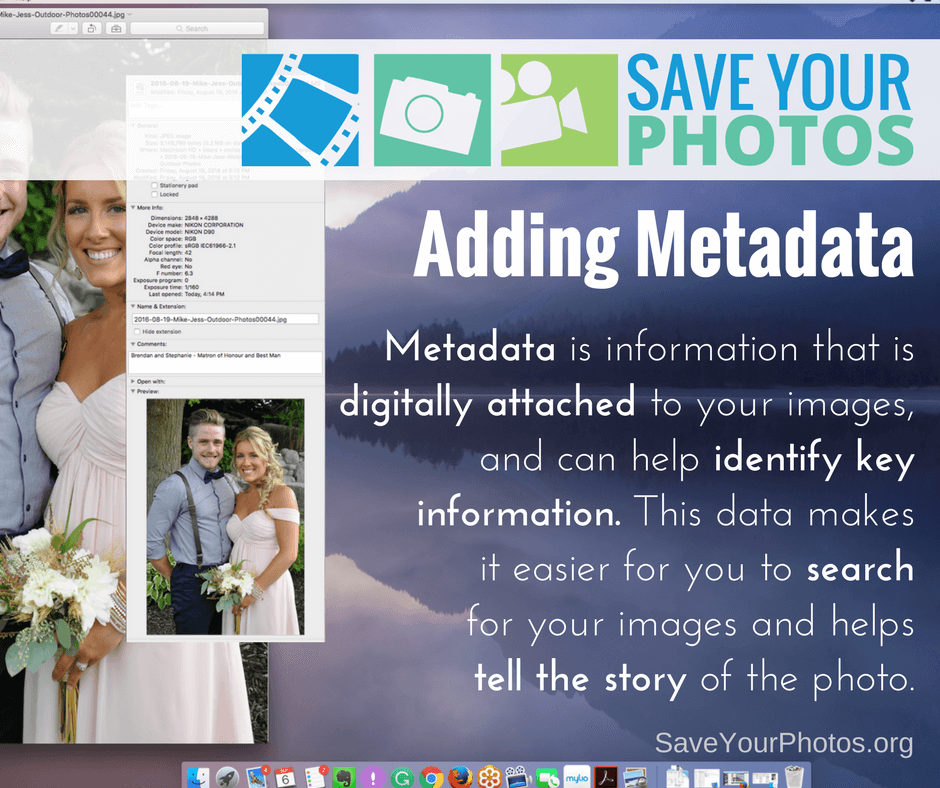
Metadata is information that is digitally attached to your images, and can help identify key information. This data makes it easier for you to search for your images and helps tell the story of the photo.

Save Your Photos: Adding Metadata | SaveYourPhotos.org


Let’s Talk about Metadata

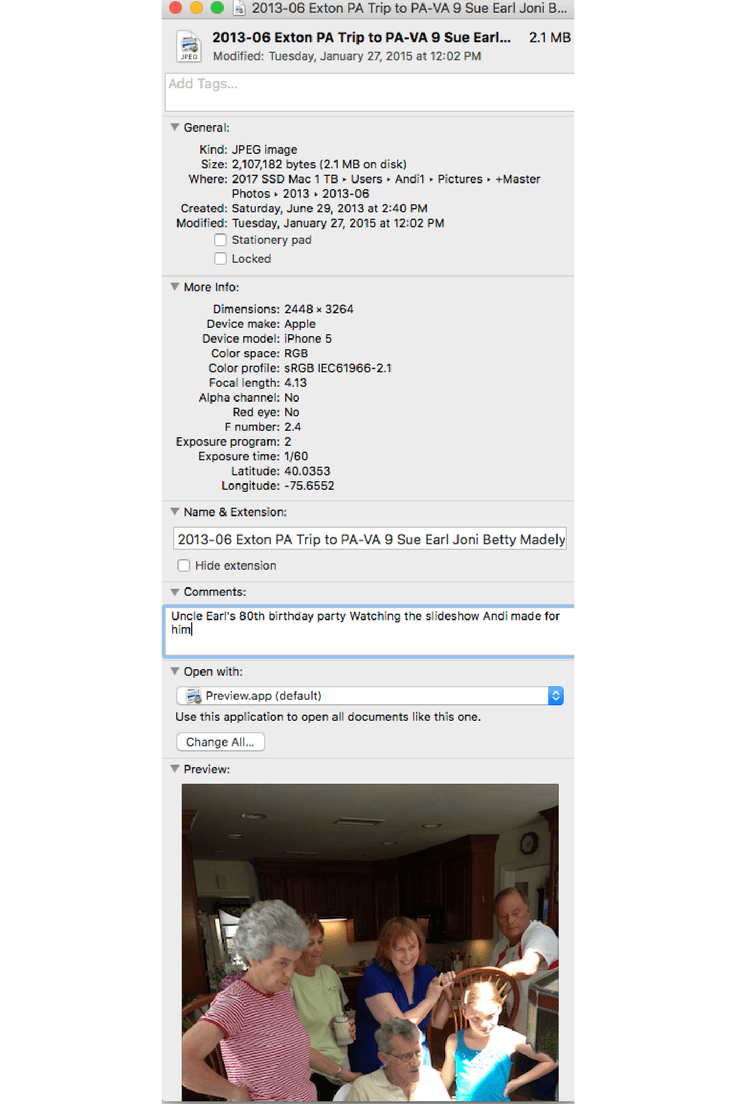
Your digital images contain information called metadata that helps identify valuable information about your photo. This information is digitally attached to your image and stays with your photo. Your digital camera or smartphone is already embedding information such as dates and location data. What a time saver!

Adding metadata to your images is the equivalent of writing information on the back of your printed photos (with a photo safe pencil of course). The more information the image contains, the richer the story.


Save Your Photos: Adding Metadata | SaveYourPhotos.org

When would you need to add or change the metadata? Remember when you got your first digital camera and you didn’t know how to set the date? All those images were created with the wrong date and will need correcting. If you have scanned photos, you’ll need to add exact dates and additional information.

More importantly, you may want to add keywords or tags to make it easy to search for photos, or you might find it helpful to add ratings to identify your favorite images.

Your digital images contain metadata that helps identify valuable information about your photo. Click To Tweet

Some of these tasks can be performed with native tools on your operating system, but they lack the efficiency of photo organizing software.

Next week we’ll be talking about photo organizing software and how to choose the right one for you!


Learn more about metadata at our sister site The Photo Organizers.

Metadata and Photos Part 1: Simplifying the Concept

Metadata & Photos, Part 2: Let Efficiency Rule!


Sign up today for more great photo organizing tips directly in your email box.

We also invite you to visit our sister blog The Photo Organizers for more tips and in-depth knowledge from some of the top photo organizing industry professionals. To find a photo organizer near you, visit the Association of Personal Photo Organizers.
Written by Andi Willis · Categorized: Photo Organization · Tagged: digital photos, how to organise digital photos, how to organize digital photos, metadata

Sep 20 2017

Save Your Photos: Sort Your Digital Photos

Save Your Photos: Sort Your Digital Photos

Once you “backup the mess,” the time has come to sort your digital photos.

Save Your Photos: Sort Digital Photos | SaveYourPhotos.org

Start With A Backup

One more step before you start collecting your images. Let’s get a backup in place. We’ll elaborate on a healthy, long-term backup strategy in a few days. For now, you want to have an external hard drive setup to backup your mess.

Yes, that right. Let’s backup the chaos!

We recommend an automatic backup to your external drive, and you want this in place before you start moving digital photos.

Now you can proceed by collecting images from all the devices and locations you indicated during your ‘hunt and gather’ inventory stage. You may find it helpful to work in stages, one device at a time. Check each device off your list so you don’t forget anything.


The ‘To Organize’ Folder

As you bring each set of digital photos into your ‘to organize’ folder, keep events or months together. For example, don’t just dump 1,475 images from your camera roll into your folder. Use your smartphone’s built-in app to identify groupings like months, events or collections.

Once you have a group of photos in your ‘to organize’ folder, you want to give the images a quick review and remove all photos that don’t need to be in your collection. Pictures of a receipt for business and the lunch photo you posted on Instagram are examples of the clutter you want to get rid of right away. Get rid of anything that you know for sure, isn’t a ‘keeper.’  

Before you organize your digital photos, backup the mess! #saveyourphotos Click To Tweet

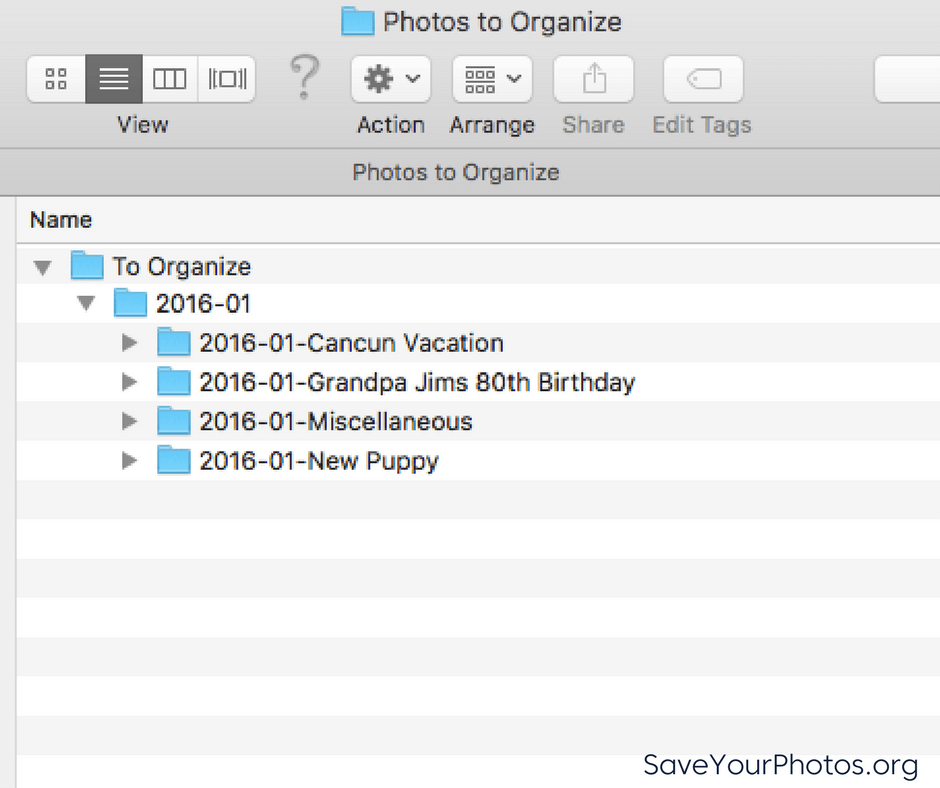
Next, create a folder and give the folder a name that represents the group of photos that will go into it. Your folder name should begin with a numeric sequence that represents the year first, followed by the month. An example might be 2016-01 for January 2016. Inside that folder; you can create themed or event folders to break it down further if you want, depending on your volume of photos. The name of that folder should begin with a numeric sequence that represents the year followed by the month, followed by the event or theme.

Here is an example of what this looks like.

Save Your Photos: Sort Digital Photos | SaveYourPhotos.org

Renaming Digital Photos

You can take this one step further by renaming each photo inside the folders. You can work in batches without the use of any additional software, and you’ll want to include ‘who, what, where’ in your filename. When you batch rename photos in your folder, your system assigns a numerical appendage to your image filename. Ultimately, each image ends up with a unique filename.

Here is an example of the filenames for one of the folders listed above.

2016-01-Grandpa Jim’s 80th Birthday
   >2016-01-25-Birthday-Jim Smith-Florida_001.jpg
   >2016-01-25-Birthday-Jim Smith-Florida_002.jpg
   >2016-01-25-Birthday-Jim Smith-Florida_003.jpg
   >2016-01-25-Birthday-Jim Smith-Florida_004.jpg
   >2016-01-25-Birthday-Jim Smith-Florida_005.jpg

Once you completed this step, it’s time to move your newly organized folder out of the ‘to organize’ folder and into its rightful place in the main folder structure of your central hub.

If you have to take a break, return to your ‘to organize’ photos and continue working. With this system, you can quickly identify where you have left off.

Repeat until all of your photos are in your hub. Next week we’ll discuss quick ways to eliminate duplicates.


Sign up today for more great photo organizing tips directly in your email box.

We also invite you to visit our sister blog The Photo Organizers for more tips and in-depth knowledge from some of the top photo organizing industry professionals. To find a photo organizer near you, visit the Association of Personal Photo Organizers.
Written by Andi Willis · Categorized: Photo Organization · Tagged: digital photos, folder structure, how to organise digital photos, how to organize digital photos, how to sort digital photos

Sep 06 2017

Save Your Photos: Digital Photo Folder Structure

Save Your Photos: Digital Photo Folder Structure

Create a ‘holding tank’ for your messy digital photos in the folder structure of your digital photo hub. Your ‘to-be-organized’ folder is your ‘dumping ground’ for all the images you bring in from devices, camera cards, the scanner, etc.

Save Your Photos: Create A Digital Folder Structure | SaveYourPhotos.org

Create Some Structure in Your Life

Now that you’ve chosen your digital photo hub, let’s create some structure. We recommend a folder structure that is scalable, and easy to understand.

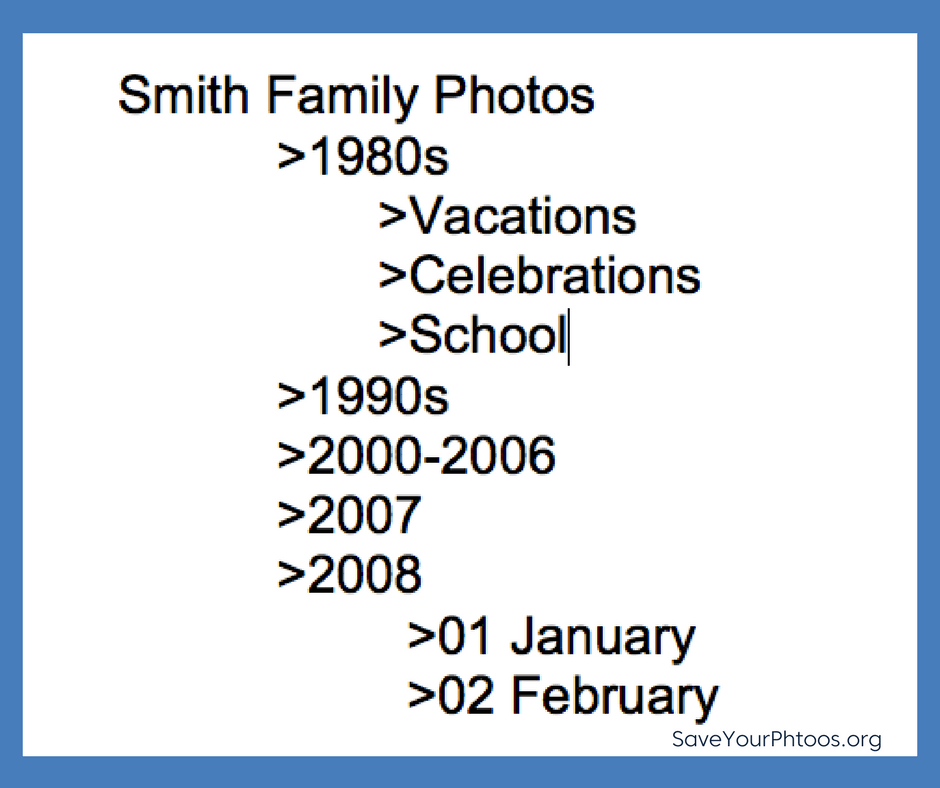
For example, a dated folder structure is predictable and easy to maintain because today’s digital images have dates embedded. Themed folders with no ‘dated’ structure work better for old scanned photos that are hard to date. Use a numerical file name for your folders which allows your computer to sort your folders in date order. Here is an example of a scalable folder structure that incorporates both:

Save Your Photos: Create A Digital Folder Structure | SaveYourPhotos.org

Create a Holding Tank: To-Be-Organized

Eventually, your sorted images will go into this folder structure, but first, we need to create a ‘holding tank’. This one folder in your hub will denote images that need sorting. Your ‘to-be-organized’ folder is your ‘dumping ground’ for all the images you bring in from devices, camera cards, the scanner, etc.

Start to Sort

Once you have your structure in place, you can start pulling in images from all your devices. Next week we’ll give you some specific tips to help streamline this work so don’t jump in just yet.

Stand Alone File Structure

One final thought about the importance of this structure. You will notice that we haven’t introduced any photo organizing software yet. We believe this structure is a ‘friendly’ option for everyone and ensures that your workflow is software independent. If you aren’t currently using a software program to organize your photos, the added learning curve may slow you down or paralyze you. We’ll teach you how to organize your photos without a specific software and we’ll leave the decision to introduce software up to you.


Sign up today for more great photo organizing tips directly in your email box.

We also invite you to visit our sister blog The Photo Organizers for more tips and in-depth knowledge from some of the top photo organizing industry professionals. To find a photo organizer near you, visit the Association of Personal Photo Organizers.

Written by Andi Willis · Categorized: Photo Organization · Tagged: digital photos, how to organise digital photos, how to organize digital photos, photo organising, photo organizing

  • 1
  • 2
  • 3
  • Next Page »

© Copyright 2017 Association of Personal Photo Organizers · All Rights Reserved · Privacy Policy